Why Ultra-Wide Curved Monitors Are Reshaping Creative Workspaces
If you spend hours retouching portraits or color-grading video footage on a standard flat panel, you already know the frustration: constant scrolling, cramped preview windows, and colors that shift every time you lean slightly to the side. Ultra-wide curved monitors for creative workspace setups directly solve these pain points by wrapping a single, seamless canvas around your natural field of vision.
More screen real estate means your full timeline, layers panel, and canvas stay visible simultaneously. The curvature keeps every pixel at a roughly equal distance from your eyes, reducing the color and brightness inconsistency that plagues flat ultra-wides at their edges.
What Makes a Curved Display Ideal for Photo Editing?
An ultra-wide curved monitor typically 34 to 40 inches with a 21:9 or 32:9 aspect ratio eliminates bezel gaps that dual-monitor setups introduce. When you drag a curve adjustment across the screen, the transition is uninterrupted, and your visual reference never breaks.
The curved geometry also minimizes eye fatigue during long sessions. Because the edges of the panel curve toward you, peripheral distortion drops, and your iris doesn't constantly refocus between center and edge content.
Choosing the Right Monitor Based on Your Workflow
Still photographers who prioritize color accuracy should look for panels with factory-calibrated Delta E below 2, wide-gamut coverage (99% Adobe RGB or DCI-P3), and hardware LUT support. An IPS or OLED panel with true 10-bit color depth handles subtle skin-tone transitions without banding.
Video editors and motion designers benefit more from higher refresh rates (at least 120 Hz) and HDR peak brightness. If your work includes VFX compositing, the extra horizontal space lets you preview a full 4K frame without scaling.
Workspace size matters. A 34-inch curved display fits most desks comfortably at a viewing distance of roughly 70–80 cm. Larger 40-inch or super-ultrawide 49-inch models demand a deeper desk and stronger mounting hardware. Measure your available space before committing.
Common Setup Mistakes and How to Fix Them
One frequent error is placing the monitor too far away. The curve only works when your seating position sits at or near the center of the implied circle. Push the panel back beyond 90 cm, and the curvature advantage largely disappears.
Another mistake is relying solely on the monitor's built-in sRGB mode for professional work. Always create a custom ICC profile using a hardware calibrator like the X-Rite i1Display Pro. Built-in presets drift over time and rarely match your specific lighting environment.
Ignore cable management at your peril. Ultra-wide panels require DisplayPort 1.4 or HDMI 2.1 for full resolution at 10-bit. A dangling cable pulling on the port can cause intermittent signal drops that are maddening to diagnose later.
Tips to Maximize Your Curved Creative Display
- Position the monitor so the curve's center points directly at your nose this is the "sweet spot" for uniform color perception.
- Use a monitor light bar instead of a desk lamp to reduce glare on the curved surface without creating hotspots.
- Calibrate monthly if you work in a space with changing ambient light, or invest in a hood to stabilize conditions.
- Set your OS scaling to 100% to avoid fuzzy text on high-resolution ultra-wide panels.
Your Quick Setup Checklist
- Measure your desk depth; confirm at least 70 cm of viewing distance for a 34-inch model.
- Verify your GPU supports the monitor's native resolution and refresh rate via DisplayPort 1.4 or HDMI 2.1.
- Install a hardware calibrator and create a profile before starting any color-critical project.
- Position seating at the center of the curve, with the top of the screen at or slightly below eye level.
- Re-calibrate every 30 days or whenever lighting conditions in your room change significantly.
Investing in the right ultra-wide curved monitor is not about chasing the biggest screen it is about matching the panel's strengths to the specific demands of your creative work. Start with your actual workflow, measure your space, and build outward from there.
Learn More Best 4k Displays for Professional Video Editing in 2024
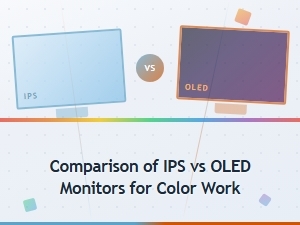 Ips vs Oled Monitors for Photo Editing: Which Display Is Best for Color Work?
 Best Budget Monitors for Home Office Setups in 2024
 Best Cheap Displays Under 200 for Productivity in 2024
 Best Budget Monitors for a Reliable Dual Setup in 2024
 Best Value 4k Displays for Video Editing on a Budget